 Vymote
How to use your iPhone as a TV remote
Published
Yes, your iPhone can control your TV — as long as it's a smart TV on the same Wi‑Fi network as the phone. iPhones don't have an infrared (IR) transmitter, so they can't "point and click" like a plastic remote. Instead, a remote app sends commands to the TV over your home network. Samsung, LG, Roku and Google TV / Android TV sets all accept commands this way.
Below is what you need, how to set it up, and what to do if the TV doesn't show up.
What you need
- A smart TV that is connected to your network. Samsung smart TVs (2016 and newer), LG webOS TVs, Roku TVs and Roku players, and Google TV / Android TV sets all work over Wi‑Fi or Ethernet.
- Your iPhone on the same Wi‑Fi network as the TV. Not a guest network, and not a different router. If your router has separate 2.4 GHz and 5 GHz networks, that's usually fine as long as both come from the same router.
- The TV switched on (or in a network-friendly standby). A TV that's fully off isn't listening on the network. Some TVs can be woken over Wi‑Fi once a setting is turned on — see How to turn on a TV without the remote.
An older TV without smart features, or a smart TV that has never been connected to the internet, can't be controlled from an iPhone over Wi‑Fi. For those, a universal IR remote is the practical answer. We explain the difference in TV remote apps: Wi‑Fi vs infrared.
Option 1: Your TV maker's official app
Every major TV brand has its own app with a remote built in:
- Samsung: SmartThings
- LG: LG ThinQ
- Roku: the Roku mobile app
- Google TV / Android TV: the Google TV remote inside the Google Home app
These are a good choice if you only have one brand of TV and don't mind an app that also handles accounts, smart-home devices and other features. Some require you to sign in before you can use the remote.
If you own an Apple TV box, the remote built into Control Center on your iPhone controls it directly — no extra app needed.
Option 2: A Wi‑Fi remote app such as Vymote
A dedicated remote app is focused on one job: being the remote. Vymote works with Samsung, LG, Roku and Google TV / Android TV, needs no account, and sends commands straight from your iPhone to the TV on your home network — never through a cloud.
Set it up in about a minute
- Turn the TV on and make sure it's connected to your home Wi‑Fi.
- Connect your iPhone to the same Wi‑Fi network.
- Open Vymote and tap Find Your TV.
- When iOS asks to let Vymote find devices on your local network, tap Allow. Without this, no app can see your TV.
- Pick your TV from the list.
- Confirm on the TV the first time:
- Samsung: a message appears on the TV — choose Allow with the TV's remote or its control button.
- LG: choose Accept on the TV.
- Google TV / Android TV: a short code appears on the TV — type it into Vymote.
- Roku: no confirmation is needed.
- That's it. The remote screen opens, and the next time you open Vymote it reconnects on its own.
If your TV doesn't appear in the list, tap My TV Isn’t Listed and then Enter IP Address Manually. You'll find the TV's IP address in its network settings.
With Vymote
Once you're connected, the remote screen works like the one in your hand — only it doesn't get lost in the couch.
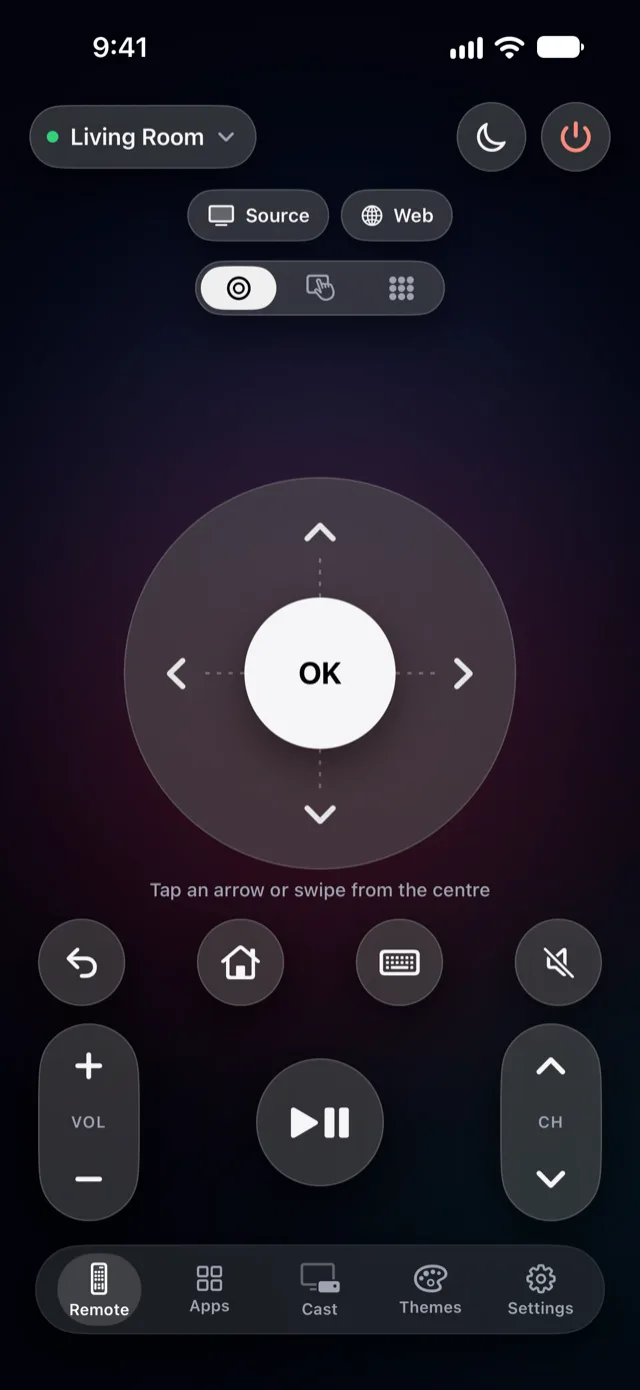
- Free forever, no ads: power off, volume, arrows, OK, Back and Home for one TV.
- Three ways to steer: a round clickpad (swipe from OK to move), a touchpad, and a number pad for channels. Swipe to switch between them.
- Source: jump between the TV's inputs.
- Send a web link to the TV on Samsung, LG and Google TV.
- A light tap under your finger on every press, so you know the TV got it.
With Vymote Pro you also get:
- The iPhone keyboard and dictation for typing searches and passwords on the TV (how it works).
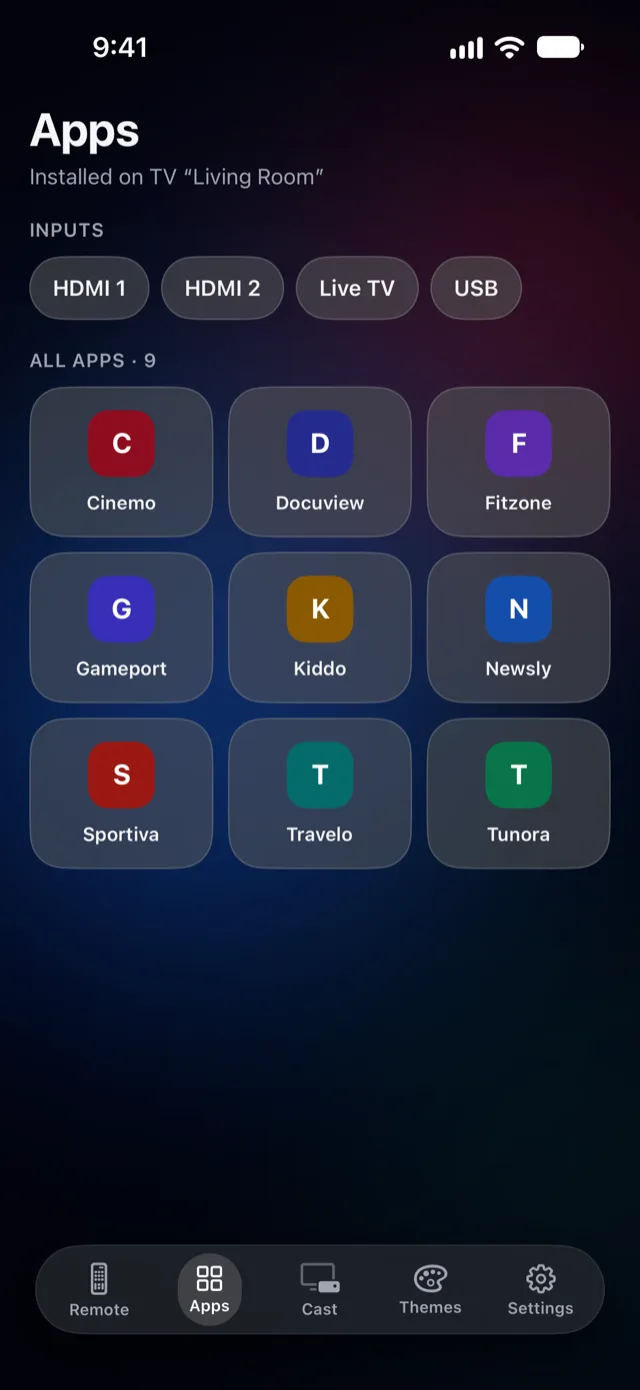
- TV apps and HDMI inputs in one tap.
- A sleep timer that fades the sound and turns the TV off (read more) — your first one is free.
- Photos, slideshows and videos on the TV over Wi‑Fi (guide).
- Your iPhone's volume buttons change the TV volume.
- Widgets, Control Center (iOS 18 and later), Siri and Apple Watch (Apple Watch guide).
- Every TV in your home, switched in one tap, and 8 remote themes (Midnight and Classic are free).
If the iPhone can't find the TV
Most connection problems come down to the network, not the TV or the app. Work through these in order:
- Turn the TV on with its own buttons and wait for the home screen.
- Check that the iPhone is on the same Wi‑Fi as the TV — not a guest network.
- Turn off any VPN on the iPhone. Also turn off iCloud Private Relay for this network: Settings → Wi‑Fi → ⓘ next to your network → Limit IP Address Tracking — off.
- Allow local network access: Settings → Privacy & Security → Local Network → Vymote — on.
- Restart the router (unplug it for 30 seconds) and wait until both the TV and the iPhone reconnect.
There's a full checklist in Why your remote app won't connect, and brand-specific help for Samsung, LG, Roku and Google TV / Android TV.
FAQ
Can an iPhone work as an infrared remote?
No. iPhones have no IR transmitter, so any iPhone remote app works over Wi‑Fi. That's why the TV must be a smart TV on your network. Plug-in IR adapters exist, but they're a separate accessory.
Do I need the internet for this to work?
You need a home Wi‑Fi network that both devices are on. Vymote's commands travel on your local network, straight from the iPhone to the TV.
Can I turn the TV on from my iPhone?
Often, yes — but it depends on the TV. Many TVs need a setting turned on so they stay reachable while off, such as Power On with Mobile on Samsung or Quick Start+ on LG. See How to turn on a TV without the remote.
Does it work with more than one TV?
Yes. The free version covers one TV; Vymote Pro adds every TV in your home and lets you switch between them in one tap.
Is it safe?
Vymote doesn't need an account, and commands, photos and videos go directly from your iPhone to your TV on your home network.