 Vymote
TV sleep timer — fall asleep to the TV without it running all night
Published
To stop your TV from running all night, set a sleep timer before you doze off. Most smart TVs have one built in: pick 30, 60 or 90 minutes and the TV switches itself off. If you'd like the sound to fade out gently instead of cutting off — the sudden silence is what wakes many people up — a phone app can do that for you.
Below: where to find the sleep timer on each TV brand, a few habits that help, and how to set a fading timer from your iPhone.
Option 1: Your TV's built-in sleep timer
Built-in timers are free and need no extra device. The catch is that they're usually buried in the settings and reset after each use. Menu names vary by model year, so treat these paths as a starting point.
Samsung
- Press the Home button and open Settings.
- Go to General → System Manager → Time → Sleep Timer (on newer models, try searching Settings for "Sleep Timer").
- Choose a time, such as 30, 60 or 90 minutes.
LG
- Press the Settings (gear) button on the remote.
- Go to General → System → Time & Timer → Timers → Sleep Timer (older models: General → Timers → Sleep Timer).
- Pick how long until the TV turns off.
Roku TV
- Press Home and open Settings → System → Time → Sleep timer.
- Choose a duration. You can also press the \* button while watching to find it in the options menu on many Roku TVs.
Google TV / Android TV
Look in Settings → System → Power & energy, or in the quick settings panel that opens from the top-right corner of the home screen. Whether there's a sleep timer — and what it's called — depends on the TV maker.
Also worth turning on: auto power off
Many TVs also have an "auto power off" or "no signal power off" option in their eco or power settings. It turns the TV off after a few hours without a button press. It's a good safety net, but on its own it can leave the TV on for most of the night.
Tips for falling asleep to the TV
- Choose a timer a bit longer than you think you need. If you usually drift off in 20 minutes, 45 is a safer bet — waking up to find the show still on is easier than waking up because it stopped.
- Lower the volume a little before bed. Quieter sound is less likely to wake you when it changes.
- Dim the picture. Many TVs have an energy-saving or "eye comfort" picture mode, which helps in a dark bedroom.
- Avoid autoplay surprises. Streaming apps often jump to the next episode with a louder intro. Turning off autoplay in the app keeps things calmer.
Option 2: A sleep timer that fades the sound
Here's where a built-in timer falls short: the TV plays at full volume until the last second, then goes silent. For light sleepers, that sudden change is exactly what wakes them.
Vymote's sleep timer works differently. It turns the sound down gradually over the last minutes, so there's no jolt — and then it turns the TV off.
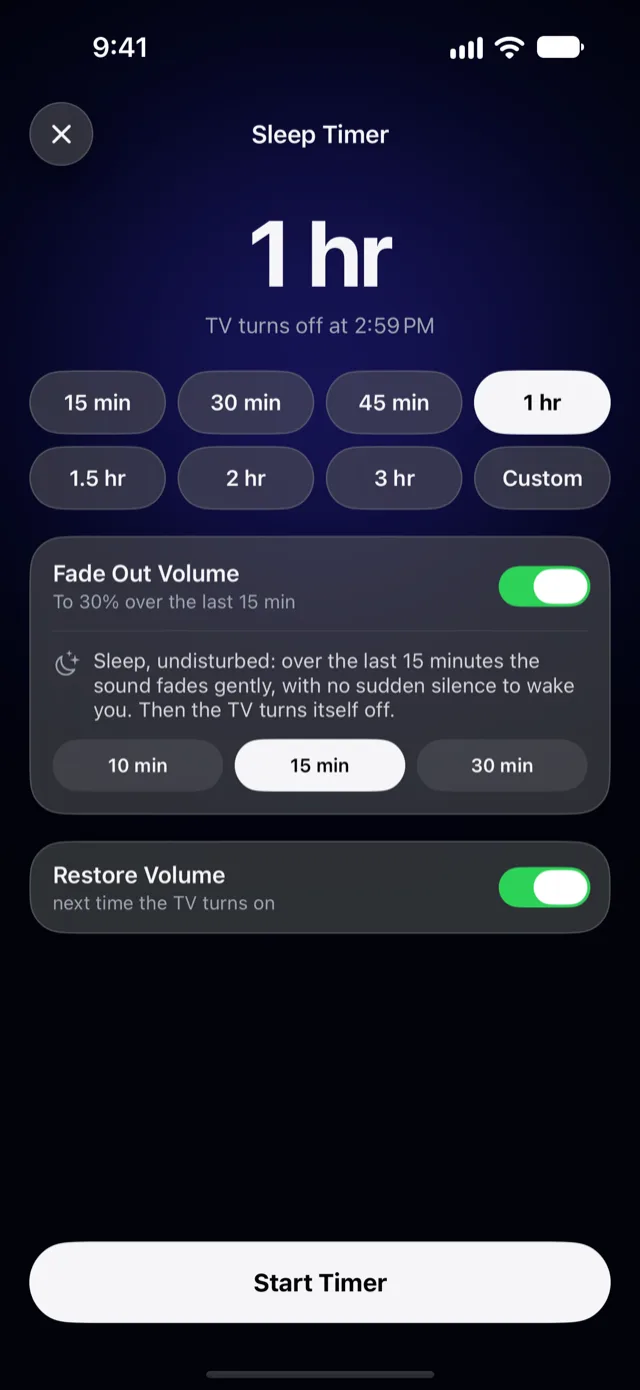
With Vymote
Vymote is an iPhone remote for Samsung (2016 and newer), LG webOS, Roku and Google TV / Android TV. Connect your TV first (see How to use your iPhone as a TV remote), then:
- On the remote screen, tap the moon button.
- Pick how long: 15, 30, 45, 60, 90 minutes, 2 or 3 hours — or Custom.
- Leave Fade Out Volume on and choose how long the fade lasts: the last 10, 15 or 30 minutes. Over that time the sound goes down smoothly to 30% of where it started.
- Tap Start Timer.
- Leave Vymote open on the night screen and put the phone down. The screen dims so it won't disturb you, and the iPhone doesn't lock.
When time is up, Vymote turns the TV off. Next time you turn the TV on, your usual volume comes back, so you don't wake up to a whisper-quiet TV.
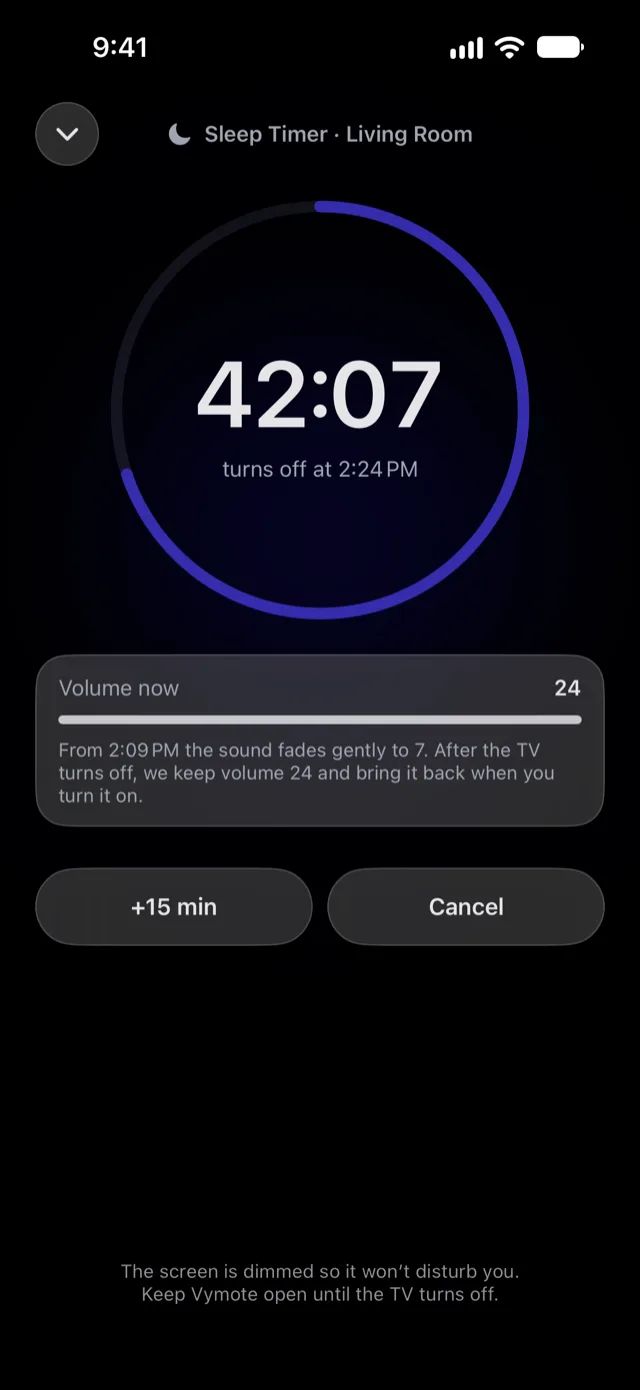
On the night screen you can:
- Tap +15 min if you're still watching.
- Tap Cancel to stop the timer — the volume goes straight back to where it was.
- Glance at the Lock Screen or the Dynamic Island, where the countdown also shows.
A few honest notes:
- Keep Vymote open. iOS pauses apps in the background, so the countdown runs while Vymote is on screen. If Vymote gets closed, the TV turns off as soon as you open it again.
- Roku TVs don't share their volume with apps, so on Roku the timer simply turns the TV off at the end, without the fade.
- Your phone and TV must stay on the same Wi‑Fi while the timer runs.
The sleep timer is part of Vymote Pro, and your first sleep timer is free, so you can try it tonight. Vymote Pro also adds the keyboard, TV apps and inputs, casting, widgets, Control Center (iOS 18 and later), Siri and Apple Watch. The basic remote — power off, volume, arrows, OK, Back and Home for one TV — stays free forever, with no ads.
Start it without opening the app
- Siri: "Start a sleep timer with Vymote" or "Turn off the TV in 30 minutes with Vymote."
- Control Center and the Action button (iOS 18 and later).
- Apple Watch: swipe to the timer page in Vymote on your watch. See Control the TV from Apple Watch.
FAQ
Does the TV's own sleep timer turn the volume down?
Usually not. Most built-in timers keep the volume the same until they switch the TV off. Vymote's timer fades the sound to 30% over the last 10, 15 or 30 minutes first.
Will my volume be stuck at 30% the next morning?
No. Vymote remembers your original volume and brings it back the next time you turn the TV on. If you cancel the timer, it comes back right away.
Can I extend the timer without waking up fully?
Yes — tap +15 min on the dimmed night screen. The countdown on the Lock Screen and in the Dynamic Island updates too.
Does the iPhone need to stay on the charger?
It's a good idea. Vymote keeps the screen from locking (dimmed) during the timer, so plugging in avoids a drained battery by morning.
Can Vymote turn the TV back on in the morning?
Vymote doesn't have an alarm, but the Power button can turn many TVs on once a wake setting is enabled. See How to turn on a TV without the remote.