 Vymote
How to turn on a TV without the remote
Published
The quickest way to turn on a TV without the remote is the power button on the TV itself — almost every model has one, usually under the bottom edge or on the back. If you want to turn it on from the couch, you have two more options: a device connected over HDMI that wakes the TV (HDMI-CEC), or your phone over Wi‑Fi, once a "wake from network" setting is enabled on the TV.
Here's how each option works, and how to set up your TV so your iPhone can switch it on.
Method 1: Press the power button on the TV
- Stand in front of the TV and feel along the bottom edge, especially in the middle below the logo. Many Samsung and LG TVs have a small button or joystick there.
- If you can't find it, check the back of the TV, near the lower corners or the side panel.
- Press it once. Most TVs turn on with a single short press.
- On a joystick-style control, a second press opens a small menu for volume, channels, input and power.
The exact location is in your TV's manual — search online for your model number (it's on a sticker on the back) plus "power button location".
Method 2: Use HDMI-CEC from another device
HDMI-CEC lets devices connected to your TV's HDMI ports turn the TV on and off. If you have a game console, a streaming box, or a soundbar connected over HDMI, turning that device on may wake the TV and switch it to the right input.
Look for the setting under its brand name:
- Samsung: Anynet+ (HDMI-CEC), in the external device or connection settings
- LG: SIMPLINK (HDMI-CEC), in the general or devices settings
- Roku TV: Settings → System → Control other devices (CEC)
- Google TV / Android TV: HDMI-CEC or "Consumer Electronic Control", usually in system or input settings
It's on by default on many TVs. The other device usually needs its own CEC setting turned on as well.
Method 3: Turn the TV on from your iPhone over Wi‑Fi
Turning a TV off from your phone is easy: the TV is on, connected and listening. Turning it on is trickier. When most TVs go into standby, they switch off their network to save power — so there's nothing for the phone to talk to.
Many smart TVs have a setting that keeps a small part of the network alive in standby. When it's on, a remote app can send a wake-up signal. Turn it on once, while the TV is on, using the TV's own remote or buttons:
Samsung
- Settings → General → Network → Expert Settings → Power On with Mobile — on.
- In the same Expert Settings, turn on IP Remote if your TV has it.
- Settings → General → Eco Solution → Auto Power Off — off, so the TV keeps its network in standby.
LG
- Settings → General → Devices → TV Management → Quick Start+ — on.
- Settings → General → Devices → Mobile TV On → Turn on via Wi‑Fi — on. On older TVs: Settings → General → Mobile TV On.
- Settings → Network → LG Connect Apps — on.
Google TV / Android TV
- Settings → System → Power & energy → Network standby (on some models it's called Wake on Wi‑Fi or Wake on LAN) — on.
- Settings → System → Power & energy → Power mode — choose Quick start or Standby, not Eco.
Roku TV
- Settings → System → Power → Fast TV start — on.
- Settings → System → Advanced system settings → Control by mobile apps → Network access — Default.
Menu names change between model years, so if you can't find the exact path, search your TV's settings for "mobile", "network standby" or "quick start". Brand pages with more detail: Samsung, LG, Roku, Google TV / Android TV, TCL.
A few things to know:
- These settings use a little more standby power. Usually only a few watts, but it's not zero.
- Some TVs can't be turned on over Wi‑Fi at all. Certain models drop the network completely in standby, whatever the settings say.
- A wired (Ethernet) connection tends to be more reliable for waking than Wi‑Fi.
- If the TV was unplugged or lost power, turn it on once with its own button before the phone can wake it again.
With Vymote
Vymote is a Wi‑Fi remote for Samsung (2016 and newer), LG webOS, Roku and Google TV / Android TV. When you tap Power on a TV that's off, Vymote tries Wake-on-LAN and each brand's own way of waking the TV. It can work when the TV's wake setting above is turned on.
To set it up and check that it works on your TV:
- Turn the TV on and connect to it in Vymote (see How to use your iPhone as a TV remote).
- In Vymote, open Settings → My TVs → Turn On from iPhone.
- Vymote shows one TV setting at a time for your brand. Turn it on with the TV's remote.
- Tap Test Now. Vymote turns the TV off, waits ten seconds and turns it on again.
- If the TV comes back, you'll see "Works!" and the Power button in Vymote turns the TV on from now on. If not, tap Next Step and try the next setting.
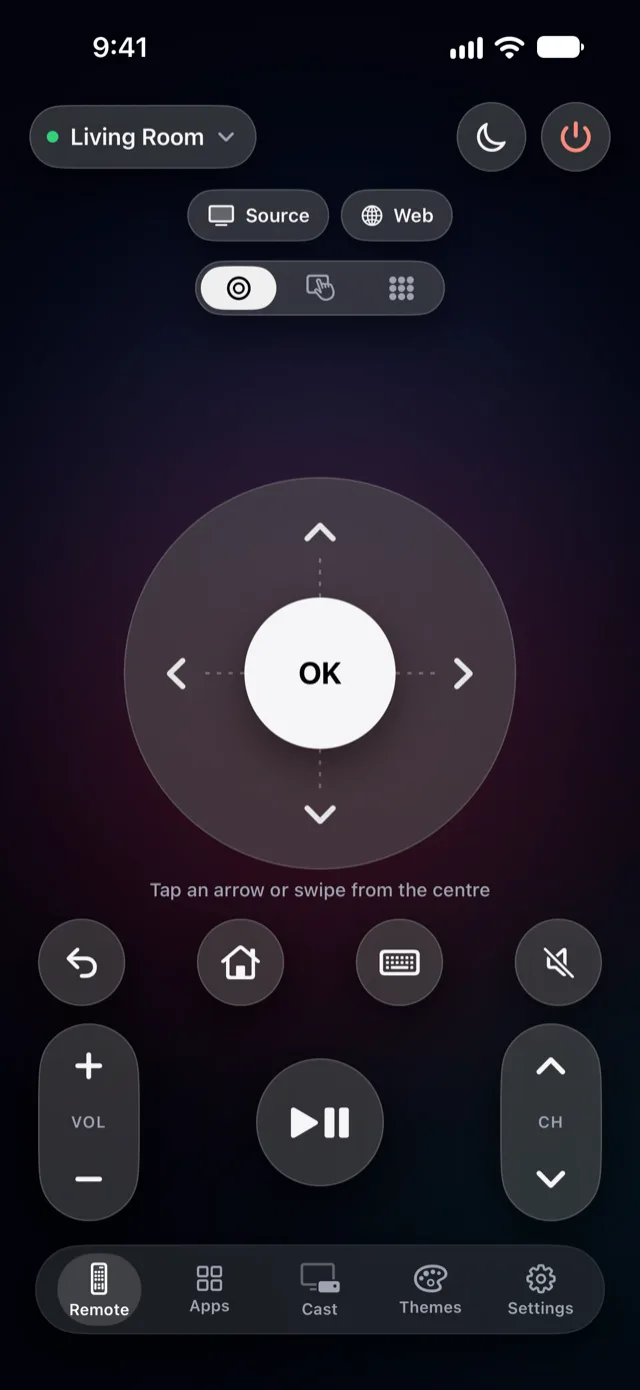
Once it works, you can also turn the TV on without opening Vymote — from a widget, Control Center (iOS 18 and later), Siri ("Turn on the TV with Vymote"), or Apple Watch. Those are part of Vymote Pro, together with the sleep timer, the keyboard, TV apps and inputs, casting, the iPhone volume buttons and every TV in your home. The basic remote — power off, volume, arrows, OK, Back and Home for one TV — is free forever, with no ads.
If the TV still won't turn on from the phone
- Make sure the TV stays plugged in. A power strip with a switch, or a smart plug that cuts power, also cuts the network.
- Check that the iPhone is on the same Wi‑Fi as the TV, not a guest network.
- Turn the TV on by hand, wait a minute, turn it off with the remote, then try the phone again — some TVs need a normal shutdown first.
- Restart the router (unplug it for 30 seconds).
If the app can't find the TV at all, read Why your remote app won't connect.
FAQ
Can I turn on an old, non-smart TV with my iPhone?
No. iPhones have no infrared, and a TV without a network connection can't hear a Wi‑Fi app. Use the TV's power button or a universal IR remote. More on this in TV remote apps: Wi‑Fi vs infrared.
Why can my phone turn the TV off but not on?
When the TV is on, it's on your network. When it's off, it usually isn't — unless a setting like Power On with Mobile (Samsung) or Quick Start+ (LG) keeps the network awake in standby.
Does a Roku player turn the TV on?
A Roku streaming player can wake the TV through HDMI-CEC if both have CEC turned on. Roku TVs with Fast TV start turned on can often be woken over the network.
I lost my remote. Can I still change these settings?
Yes — use the TV's own button or joystick to move through the menus, or connect a phone app first, since the menus can be navigated with the app's arrows and OK. See Lost your TV remote?