 Vymote
Lost your TV remote? 5 ways to control the TV
Published
If you've lost your TV remote, you can still control the TV: use the buttons on the TV itself, turn your phone into a remote over Wi‑Fi, let another device's remote drive the TV through HDMI-CEC, or get a replacement or universal remote. Here are all five options, starting with the ones that work right now.
Before you start, one quick search tip: check under couch cushions, in the gap between the seat and the armrest, inside blanket folds, and in the fridge or bathroom (yes, really). Some Roku voice remotes also have a built-in speaker that you can make beep from the Roku mobile app.
1. Use the buttons on the TV
Almost every TV has a few physical controls. On many modern sets it's a single small button or joystick, usually hidden under the bottom edge in the middle (often right below the logo) or on the back, near one of the corners.
- Feel along the bottom edge and the back of the TV for a button or a small stick.
- Press it once to turn the TV on.
- Press it again (or push the joystick) to open a small on-screen menu with volume, channel, input and power.
- Move through the menu with short presses or by tilting the joystick; hold it to select.
It's slow, but it's always there — and you'll need it in a moment if your TV asks you to confirm a new phone.
2. Use your phone as a remote
If your TV is a smart TV connected to your Wi‑Fi, your phone can control it. iPhones have no infrared, so the phone talks to the TV over your home network instead.
You can use your TV maker's official app — SmartThings for Samsung, LG ThinQ for LG, the Roku mobile app, or the Google TV remote in the Google Home app — or a dedicated remote app like Vymote, which works with all four brands.
- Turn the TV on (with its own button if needed).
- Make sure your iPhone is on the same Wi‑Fi network as the TV.
- Open the remote app and let it find your TV. On iPhone, allow Local Network access when asked.
- Confirm the connection on the TV the first time. Without your remote:
- Samsung shows an "Allow" message — select it with the TV's control button.
- LG shows an "Accept" message — select it the same way.
- Google TV / Android TV shows a code — just type it on your phone.
- Roku doesn't ask at all.
The full walkthrough is in How to use your iPhone as a TV remote.
The catch: a phone app only works if the TV is already connected to your Wi‑Fi. If the TV has never been set up on your network, use option 1 to connect it first (Settings → Network on most TVs).
3. Let another remote do it with HDMI-CEC
HDMI-CEC lets devices plugged into your TV's HDMI ports control it. If you have a game console, a streaming box, or a soundbar connected over HDMI, its remote or controller may be able to turn the TV on and off, and sometimes change the volume.
The feature has a different name on each brand:
- Samsung: Anynet+ (HDMI-CEC)
- LG: SIMPLINK (HDMI-CEC)
- Roku TV: Settings → System → Control other devices (CEC)
- Google TV / Android TV: usually HDMI-CEC or "Consumer Electronic Control" in the system or input settings
CEC is often on by default. Turn on your console or streaming box and see whether the TV wakes up with it.
4. Get a replacement or universal remote
For the long run, a physical remote is still the most reliable fallback.
- Official replacement: search for your TV's model number (on a sticker on the back) plus "remote". An original remote supports every button, including the voice button.
- Universal remote: inexpensive and works with almost any TV, including older non-smart ones, because it uses infrared. You'll set it up with a brand code from its manual.
5. Use Vymote on your iPhone
Vymote turns your iPhone into a remote for Samsung (2016 and newer), LG webOS, Roku and Google TV / Android TV — no account, no extra box, no batteries.
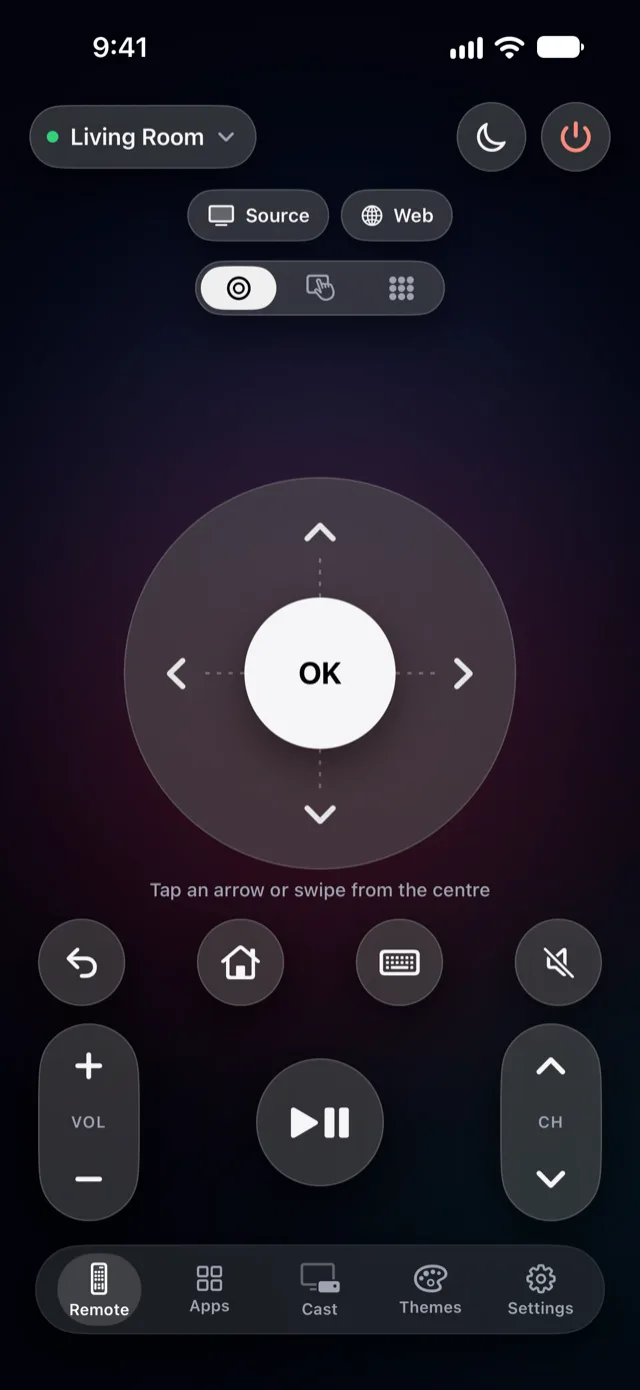
With Vymote
The basic remote is free forever, with no ads: power off, volume, arrows, OK, Back and Home for one TV. That's enough to get through any lost-remote evening. You also get:
- Three remote modes: a round clickpad (swipe from OK to move), a touchpad, and a number pad for channels.
- Source for switching the TV's inputs.
- Send a web link to your Samsung, LG or Google TV.
If you'd rather not go back to a plastic remote at all, Vymote Pro adds the things a real remote can't do well:
- Type with the iPhone keyboard or dictation instead of picking letters one by one (guide).
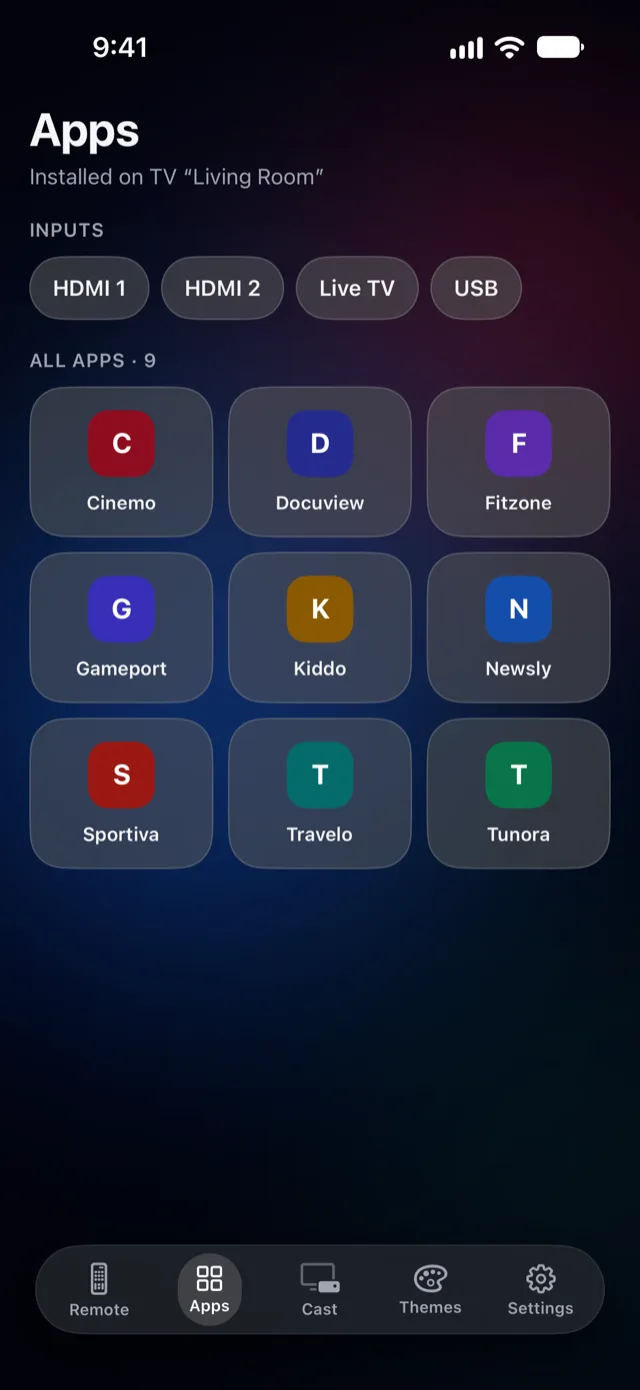
- Open TV apps and switch HDMI inputs in one tap.
- Your iPhone's volume buttons change the TV volume.
- Apple Watch remote, with the Digital Crown for volume (guide).
- A sleep timer that fades the sound and turns the TV off — the first one is free (guide).
- Widgets, Control Center (iOS 18 and later) and Siri, so you don't even need to open the app.
Turning the TV on without a remote
Turning a TV off from your phone is easy. Turning it on is harder, because a TV that's off usually stops listening on Wi‑Fi. Many TVs can still be woken if a setting is enabled once — Power On with Mobile on Samsung, Quick Start+ or Mobile TV On on LG, Network standby on Google TV, or Fast TV start on Roku TVs. In Vymote, open Settings → My TVs → Turn On from iPhone for a guided test. It doesn't work on every model, so keep the TV's power button in mind. Details: How to turn on a TV without the remote.
FAQ
Can I control my TV with my phone if the TV isn't on Wi‑Fi?
Not with an iPhone. Phone remote apps on iPhone work over the network, so the TV needs to be connected first. Use the TV's own buttons to join your Wi‑Fi, or use a universal IR remote.
Is there a way to find a lost TV remote?
Some Roku voice remotes have a speaker you can trigger from the Roku mobile app. Most other remotes have no finder, so a methodical search (couch, blankets, under furniture) is the best bet.
My Samsung asks me to press "Allow," but I have no remote. What now?
Use the control button or joystick on the TV to select Allow. If the message disappears, tap Try Again in the app. More help: Samsung help.
Will a phone app change channels?
Yes. Vymote has volume and channel buttons, plus a number pad for typing a channel number directly.