 Vymote
Type on your TV with the iPhone keyboard
Published
Typing on a TV with the remote — arrow to a letter, press OK, repeat — is one of the slowest things in modern life. You can skip it: open a search box or password field on the TV, then type on your iPhone instead. Your TV maker's app, a USB keyboard, the remote's voice button, or a remote app like Vymote can all do it. Here's how each option works.
Option 1: Use the TV's voice button
If your TV remote has a microphone button, that's often the quickest way to search.
- Press and hold the microphone button on the remote.
- Say what you're looking for, such as the name of a show.
- Release the button and pick a result.
Voice search is great for titles but useless for passwords, email addresses and Wi‑Fi keys, which need exact characters.
Option 2: Plug a keyboard into the TV
Many Samsung, LG and Google TV / Android TV sets accept a regular USB keyboard, and some accept Bluetooth keyboards.
- Plug a USB keyboard into a free USB port on the TV, or pair a Bluetooth keyboard in the TV's Bluetooth or input device settings.
- Open a text field on the TV and type.
It works well if you have a spare keyboard lying around — less well if it means a cable across the living room.
Option 3: The TV maker's app
The official apps for each TV brand — SmartThings for Samsung, LG ThinQ for LG, the Roku mobile app, and the Google TV remote in the Google Home app — typically include a keyboard button that appears when the TV shows a text field. They're free and made by the TV maker. Some require you to sign in, and each one works with only its own brand.
Option 4: Type with the iPhone keyboard in Vymote
Vymote is a Wi‑Fi remote for Samsung (2016 and newer), LG webOS, Roku and Google TV / Android TV. Its keyboard sends each letter to the TV as you type, so the TV's search results update while you're still typing.
How to type on the TV
- Connect Vymote to your TV (see How to use your iPhone as a TV remote).
- On the TV, open a search box or text field — for example, the search in a streaming app, or a password field.
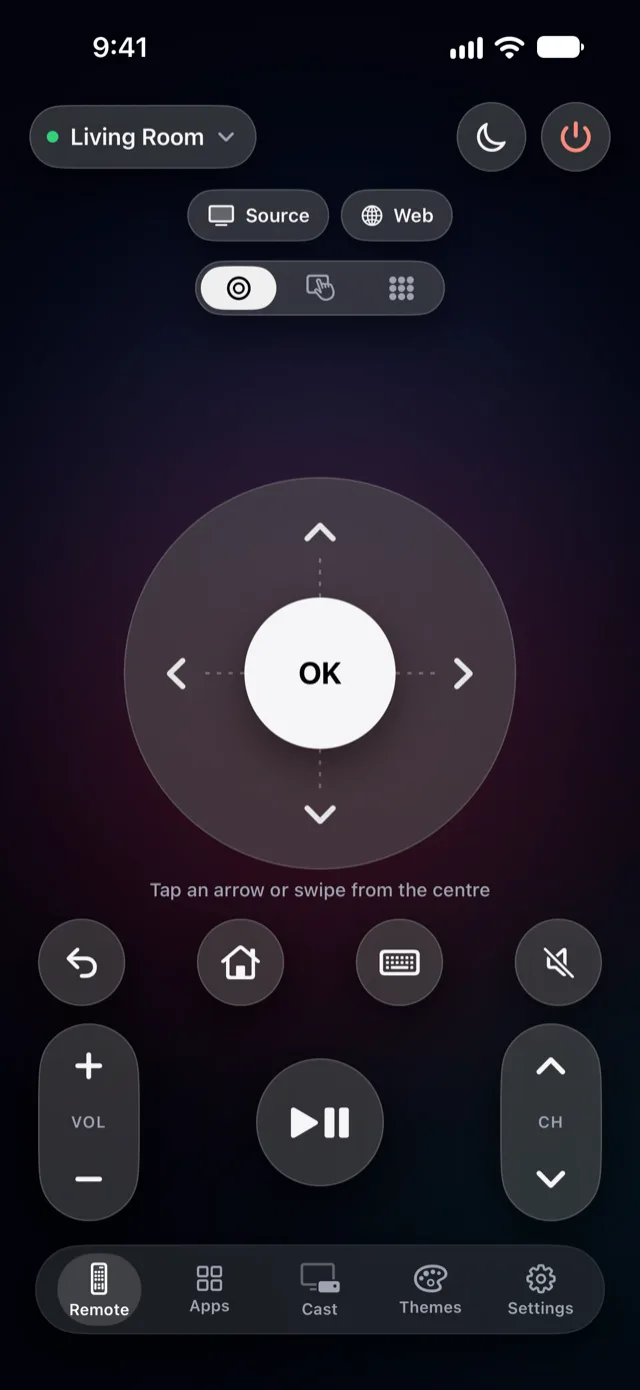
- In Vymote, tap the keyboard button on the remote screen.
- Type on your iPhone. Each letter appears on the TV right away.
- Made a mistake? Delete on the iPhone, and the TV updates. Clear removes everything at once.
- Tap Search (the return key) on the iPhone keyboard to send Enter to the TV.
Paste a password or a link
Long passwords and codes are where the iPhone keyboard really pays off.
- Copy the password from your password manager or notes on the iPhone.
- Open the password field on the TV.
- In Vymote's keyboard, tap Paste.
- Check the TV, then tap Search (Enter) to confirm.
Tip: if your password manager can fill passwords into apps, it still can't reach a TV — copy and paste is the safest route.
Use dictation
- In Vymote's keyboard, tap Voice.
- Tap the microphone on the iPhone keyboard and speak.
- The words go to the TV as text.
This uses the dictation built into iOS, so it understands the languages you've set up on your iPhone.
Brand notes
- Samsung: text goes into the TV's on-screen text field. If nothing appears, open the search box on the TV first and try again.
- LG: text goes into the field the TV has open, such as a search box.
- Roku: letters are sent to the TV as you type.
- Google TV / Android TV: works in search and text fields. If the TV doesn't show a text field yet, Vymote sends letters, numbers and common symbols as key presses.
If you see "Open a search box on the TV first," that's exactly it — the TV needs an open text field before it can take text.
With Vymote
The keyboard is part of Vymote Pro, together with:
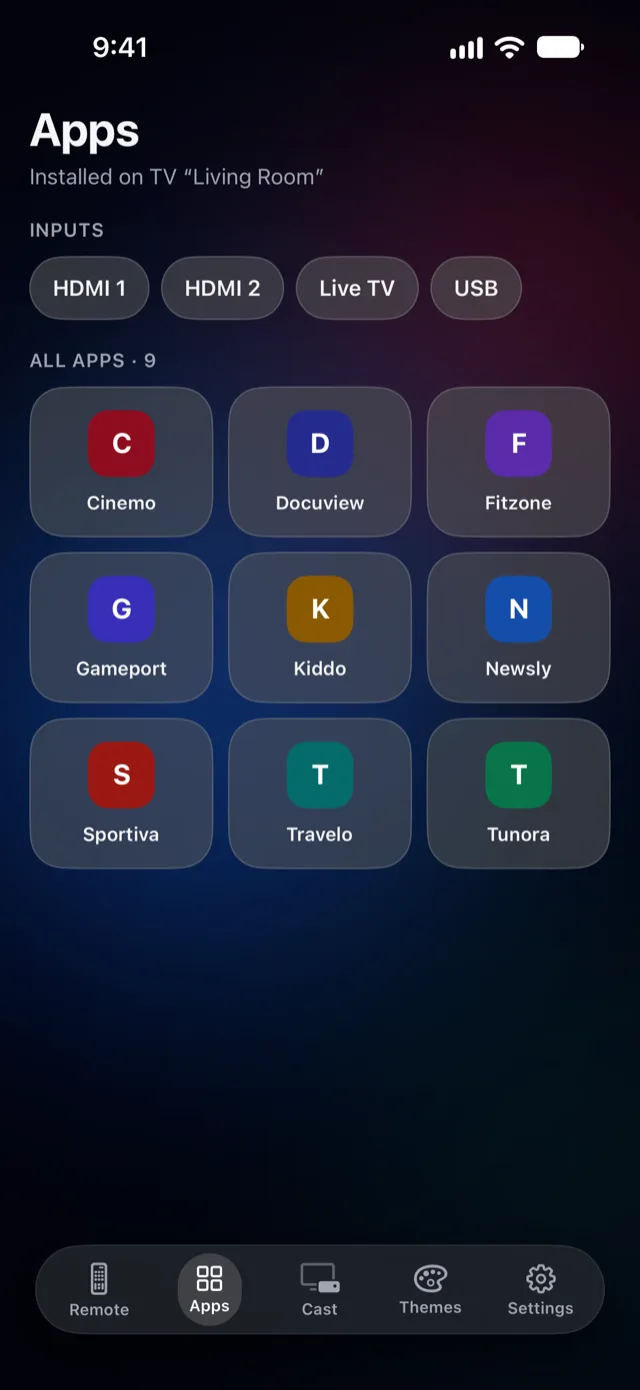
- TV apps and HDMI inputs in one tap — open a streaming app, then search it with the keyboard.
- The sleep timer that fades the sound and turns the TV off; your first one is free (guide).
- Photos and videos on the TV over Wi‑Fi (guide).
- Widgets, Control Center (iOS 18 and later), Siri and Apple Watch.
- The iPhone volume buttons for TV volume, and every TV in your home.
The basic remote — power off, volume, arrows, OK, Back and Home for one TV — is free forever, with no ads. Vymote also has Open a Link on TV for Samsung, LG and Google TV: paste a web address on your iPhone and the TV opens it in its browser, with no typing on the TV at all.
If the text doesn't reach the TV
- Open a text field on the TV first. Most TVs ignore text when no field is open.
- Check the connection. If the remote buttons work, the keyboard will too. If not, see Why your remote app won't connect.
- Try again in a different app. A few apps on the TV use their own custom keyboards that don't accept text from phones. In that case, the arrows and OK still work.
- Restart the TV: unplug it for a minute and try again.
Brand help: Samsung, LG, Roku, Google TV / Android TV.
FAQ
Can I type passwords on my TV with my iPhone?
Yes. Open the password field on the TV, then type or paste the password in Vymote's keyboard. The text goes directly from your iPhone to the TV on your home network.
Does the keyboard work in Netflix, YouTube and other apps?
In most apps with a standard search box, yes. A few TV apps draw their own keyboard and ignore text from phones; there, use the arrows and OK.
Can I type in languages other than English?
Generally yes — you type with your iPhone's keyboards and dictation. What appears depends on what the TV app accepts.
Do I need to unlock anything on the TV?
No extra settings are needed beyond connecting Vymote to the TV the first time.