 Vymote
How to show photos from iPhone on a Samsung or LG TV
Published
The easiest way to show iPhone photos on a Samsung or LG TV is to send them over your home Wi‑Fi. Many recent Samsung and LG TVs accept AirPlay right from the Photos app, and a casting app like Vymote can send photos, slideshows and videos to Samsung, LG and Roku TVs — and to some Google TV models — without uploading anything. If your TV is offline or older, a USB stick still works.
Here's how each method works and when to use it.
Before you start
- Your iPhone and TV must be on the same Wi‑Fi network (not a guest network).
- Turn the TV on and leave it on its home screen or any input.
- For a big batch of photos, plug the iPhone in — sending photos keeps the Wi‑Fi busy and uses a bit more battery.
Option 1: AirPlay from the Photos app (on supported TVs)
Many Samsung TVs from 2018 onward and LG TVs from 2019 onward have AirPlay built in. If yours does:
- On the TV, make sure AirPlay is turned on. On Samsung look under Settings → General → Apple AirPlay Settings; on LG, open the Home Dashboard → AirPlay. (Names vary by model.)
- On the iPhone, open Photos and pick a photo or video.
- Tap Share, then AirPlay, and choose your TV.
- The first time, the TV may show a code — type it on the iPhone.
- Swipe through photos on the iPhone; the TV follows.
If AirPlay doesn't appear, your TV may not support it, or it may be turned off in the TV's settings.
Option 2: A USB stick
Works with almost any TV, including older non-smart models and TVs that aren't on Wi‑Fi.
- Copy the photos to a USB flash drive from a computer. (On iPhone you can also save to a USB-C drive through the Files app if your iPhone has a USB-C port.)
- Plug the drive into the TV's USB port.
- Open the TV's media or source menu and choose the USB device.
- Pick a photo and start the TV's own slideshow.
It's reliable but slow to set up, and you'll redo it every time you take new photos.
Option 3: The TV maker's app
Samsung's SmartThings and LG's ThinQ app both connect your phone to the TV, and depending on your model and region they may include a way to share media. Features change often, so check the app on your phone to see what your TV supports.
Option 4: Send photos and videos with Vymote
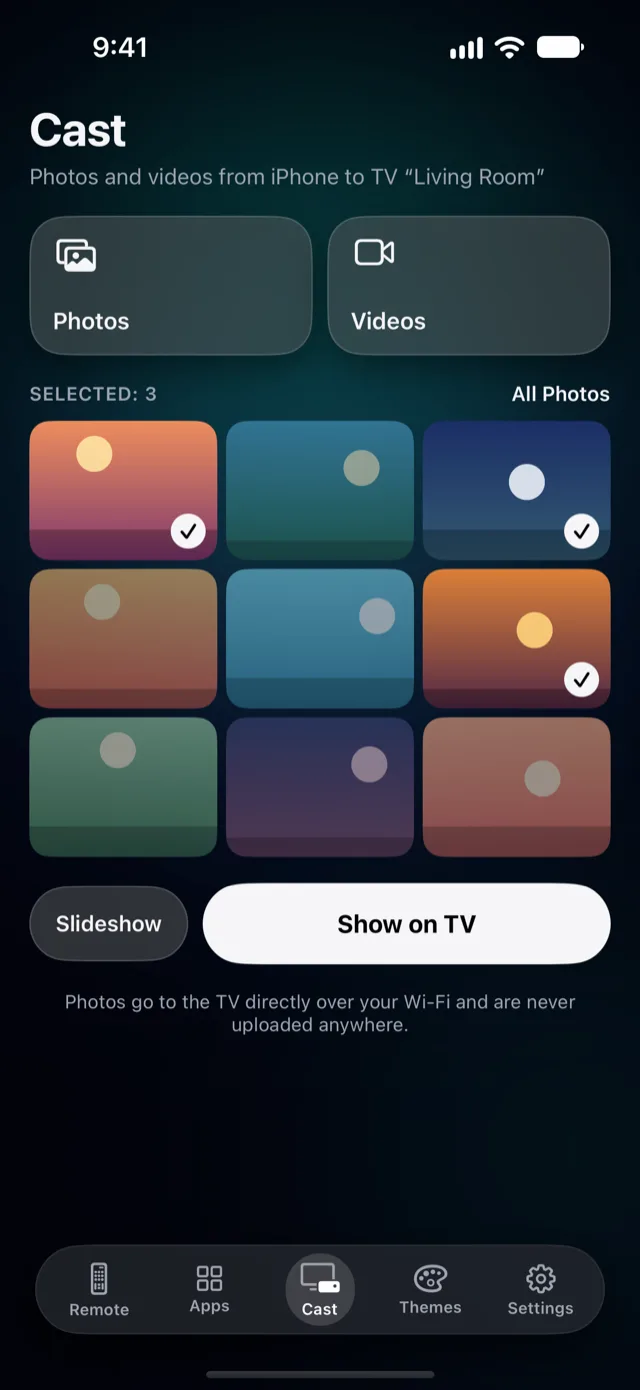
Vymote sends photos, slideshows and videos straight from your iPhone to the TV over your Wi‑Fi. Nothing goes through a cloud, and you don't need an account. It works with Samsung and LG smart TVs, Roku TVs and players, and some Google TV models.
Show photos
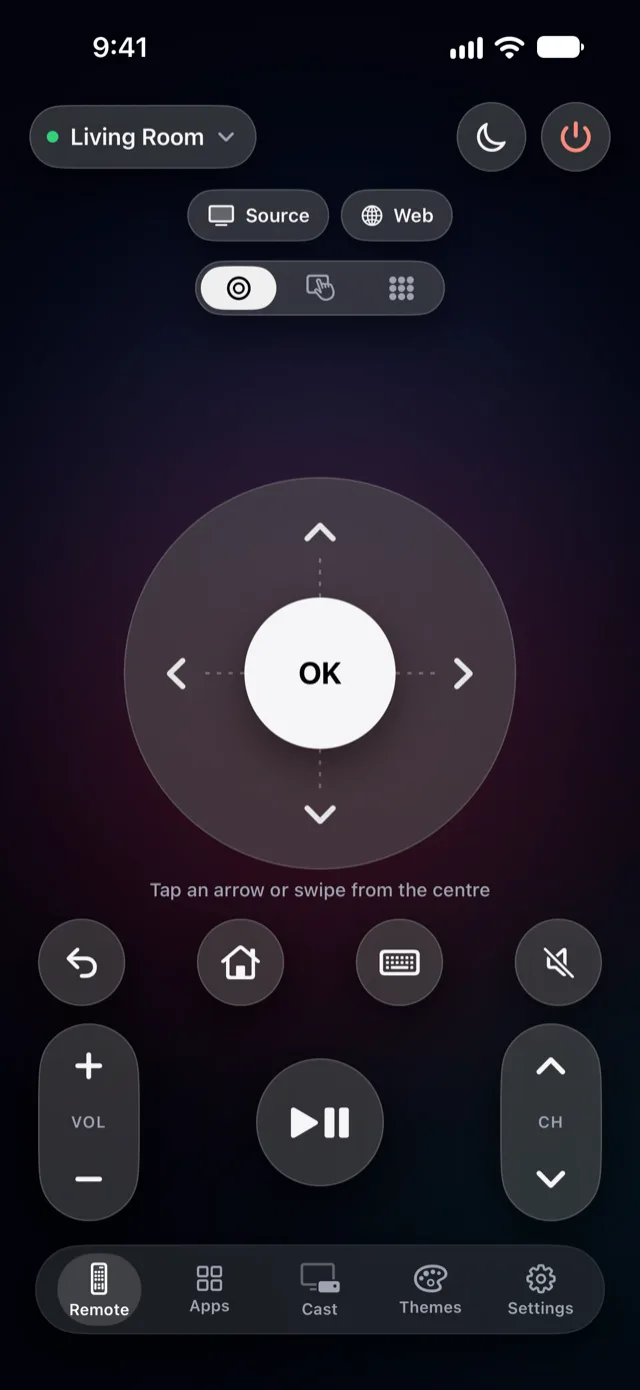
- Connect Vymote to your TV (see How to use your iPhone as a TV remote).
- Tap Cast in the bar at the bottom of the screen.
- Tap Photos. The standard iOS photo picker opens — Vymote never sees the rest of your library, only the photos you choose.
- Select up to 50 photos and confirm.
- The first photo appears on the TV. Use back and forward to move between photos.
Start a slideshow
- After choosing photos, tap Slideshow.
- Each photo stays on screen for a few seconds, then the next one appears.
- Use back, forward and stop at any time.
Play a video
- On the Cast screen, tap Videos and pick one video.
- Vymote prepares it and the TV starts playing in full quality, with sound on the TV.
- Keep Vymote open while the video plays — iOS pauses apps in the background, and the TV would stop receiving the video.
How it stays private
Your photos and videos travel only inside your home network, from the iPhone to the TV. They are never uploaded to a server. When you're done, the TV simply stops showing them.
With Vymote
Casting is part of Vymote Pro. It's handy for:
- Family evenings: holiday photos on the big screen, without passing the phone around.
- Quick videos: a clip from today, in full quality and with the sound on the TV speakers.
- Gatherings: a slideshow running in the background.
Vymote Pro also includes the sleep timer (your first one is free), typing with the iPhone keyboard, TV apps and HDMI inputs, widgets, Control Center (iOS 18 and later), Siri, the Apple Watch remote, the iPhone volume buttons and every TV in your home. The basic remote — power off, volume, arrows, OK, Back and Home for one TV — is free forever, with no ads.
If photos don't show up on the TV
- Check the Wi‑Fi. The iPhone and TV must be on the same network, and VPN on the iPhone should be off.
- Allow local network access: iPhone Settings → Privacy & Security → Local Network → Vymote — on.
- Restart the TV: unplug it for a minute, then try again.
- On Google TV: only some models accept photos and videos from apps. If yours doesn't, Vymote will tell you — use AirPlay (if the TV has it) or a USB stick instead.
- Brand help: Samsung, LG, Roku, Google TV / Android TV.
FAQ
Do I need to upload my photos to the cloud first?
No. With Vymote, photos and videos go directly from your iPhone to the TV over your Wi‑Fi. They aren't uploaded anywhere. AirPlay and USB are local too.
Does Vymote need access to all my photos?
No. You choose photos in the standard iOS picker, and Vymote only receives the ones you select.
Can I show Live Photos or HEIC images?
Yes. Vymote converts the photos you pick into a format the TV understands before sending them, so HEIC photos from the iPhone camera work. Live Photos show as still images.
Why does the video stop when I lock my phone?
The iPhone itself sends the video to the TV, and iOS pauses apps in the background. Keep Vymote open on screen while the video plays.
Does it work with Roku?
Yes. Vymote sends photos and videos to Roku TVs and players too.