 Vymote
Why your remote app won't connect (and how to fix it)
Published
When a TV remote app on your iPhone won't connect, the cause is almost always one of four things: the iPhone and TV are on different networks, iOS is blocking local network access, a VPN is in the way, or the TV itself is refusing new devices. These problems affect every Wi‑Fi remote app — the TV maker's own app included — and most take a minute or two to fix.
Work through the steps below in order. Start with the general checks, then jump to your TV brand.
Step 1: Make sure the TV is on and online
- Turn the TV on with its own remote or the button on the TV, and wait until its home screen appears. A TV that's in standby usually isn't on the network.
- Open a streaming app on the TV for a second. If it can't load anything, the TV isn't connected to Wi‑Fi — fix that in the TV's network settings first.
Step 2: Put the iPhone on the same Wi‑Fi as the TV
- On the iPhone, open Settings → Wi‑Fi and note the network name.
- On the TV, check its network name in the network settings.
- They must match — and it must not be a guest network. Guest networks usually stop devices from seeing each other.
- If your router has two networks (2.4 GHz and 5 GHz), that's fine as long as both come from the same router. A Wi‑Fi extender or a second router can split your home into separate networks; connect both devices to the same one.
Step 3: Allow Local Network access
iOS asks once whether an app may find devices on your network. If you tapped "Don't Allow," no remote app can see the TV.
- Open iPhone Settings → Privacy & Security → Local Network.
- Find your remote app (for example, Vymote) and turn it on.
- Close and reopen the app.
Step 4: Turn off VPN and Private Relay
A VPN sends your iPhone's traffic somewhere else, so it can't reach a TV in the same room.
- Turn off any VPN app, or Settings → VPN — off.
- Turn off iCloud Private Relay for your home network: Settings → Wi‑Fi → ⓘ next to your network → Limit IP Address Tracking — off.
Step 5: Restart the router and the TV
- Unplug the Wi‑Fi router for 30 seconds, then plug it back in.
- Wait until both the TV and the iPhone are back on Wi‑Fi.
- If the app still can't connect, unplug the TV from power for a minute, plug it back in and turn it on.
Step 6: Fix the TV's own settings
If the app finds the TV but can't connect — or connects and then gets rejected — the TV is blocking it. Each brand has its own switch.
Samsung
- Answer the question on the TV. The first time, the TV shows a message asking to allow the connection. Choose Allow with the TV's remote within a minute.
- Remove an old entry: Settings → General → External Device Manager → Device Connection Manager → Device List — select the app and delete it, then try again.
- Access Notification: in Device Connection Manager, set it to First Time Only.
- IP Remote: Settings → General → Network → Expert Settings → IP Remote — on, if your TV has it.
If the connection fails within a couple of seconds without any message on the TV, the app is almost always blocked in the Device List. More: Samsung help.
LG
- Accept on the TV. Choose Accept when the TV asks.
- LG Connect Apps: Settings → Network → LG Connect Apps — on. On newer TVs: Settings → General → Devices → External Devices → TV On With Mobile.
- Mobile TV On: Settings → General → Devices → Mobile TV On → Turn on via Wi‑Fi — on.
More: LG help.
Roku
Roku doesn't ask for confirmation, but it can block phone apps entirely.
- Settings → System → Advanced system settings → Control by mobile apps → Network access: Default.
More: Roku help.
Google TV / Android TV (including many TCL and Sony sets)
- Type the code. The TV shows a short code — type it in the app within a minute.
- No code appears, or the connection is refused: Settings → Apps → See all apps → Show system apps → Android TV Remote Service → Clear data, then unplug the TV for a minute.
- Update the remote service: open Google Play on the TV → search "Android TV Remote Service" → Update.
More: Google TV / Android TV help and TCL help.
Step 7: Connect by IP address
If the TV never appears in the list but everything else checks out, connect directly with its IP address.
- Find the TV's IP address in its network settings (usually under Network → Network Status, About, or your Wi‑Fi network's details).
- In the app, choose to add the TV manually and type the address.
In Vymote: on the search screen, tap My TV Isn’t Listed → Enter IP Address Manually, type the address and choose the brand if asked.
With Vymote
Vymote is a Wi‑Fi remote for Samsung (2016 and newer), LG webOS, Roku and Google TV / Android TV, and it's built to tell you what's wrong instead of just saying "error."
- Search lists the TVs it finds on your network, with their brand.
- When something fails, Vymote shows the fix for your brand — the exact TV menu path, one step at a time, with Try Again.
- "Not found" screens explain the likely cause: a guest network, a VPN, or Local Network access turned off.
- Reconnects quietly when you come back to the app, switch Wi‑Fi, or the TV wakes up.
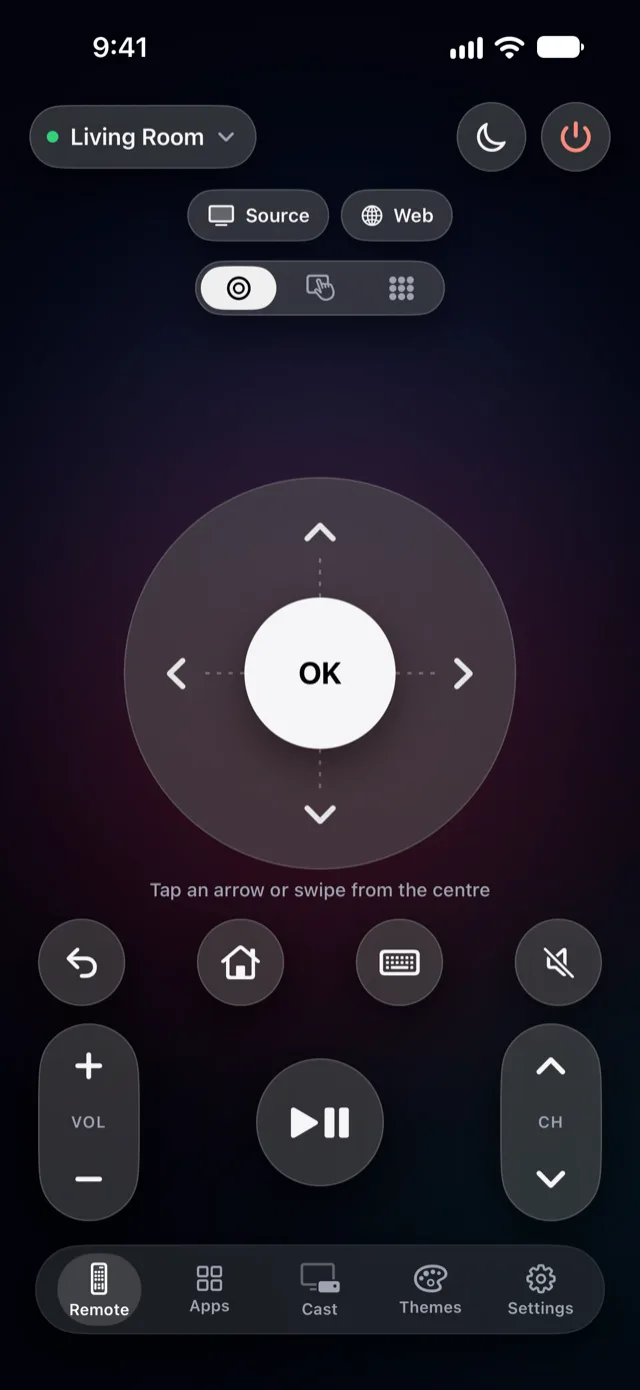
The basic remote — power off, volume, arrows, OK, Back and Home for one TV — is free forever, with no ads. Vymote Pro adds the sleep timer (first one free), typing with the iPhone keyboard, TV apps and inputs, casting photos and videos, widgets, Control Center (iOS 18 and later), Siri, Apple Watch, the iPhone volume buttons and every TV in your home.
FAQ
Why does my remote app work sometimes and not other times?
Usually because the TV drops off the network in standby, or the iPhone switches to another network (like a mobile hotspot or a neighbor's open Wi‑Fi). Turn the TV on first and check the iPhone's Wi‑Fi.
The app finds my TV but says the connection was refused. Why?
The TV is blocking new devices. On Samsung, delete the app from the Device List; on LG, turn on LG Connect Apps; on Roku, set Control by mobile apps to Default; on Google TV, clear data for Android TV Remote Service.
Do I need Bluetooth on?
No. Wi‑Fi remote apps talk to the TV over your home network. Bluetooth isn't used for this.
Can a remote app connect to an old TV without Wi‑Fi?
No. iPhones have no infrared, so the TV has to be a smart TV on your network. See TV remote apps: Wi‑Fi vs infrared.
Can I turn the TV on from the app once it connects?
Often, if the TV's wake setting is on. See How to turn on a TV without the remote.