 Vymote
Control the TV from Apple Watch
Published
Yes, you can control a smart TV from your Apple Watch. Your watch doesn't talk to the TV directly — it sends each button press to a remote app on your iPhone, and the iPhone passes it to the TV over your home Wi‑Fi. With Vymote, that means arrows, OK, Back, Play/Pause, power and volume on the Digital Crown, for Samsung, LG, Roku and Google TV / Android TV sets.
Here's what you need, how to set it up and what to expect.
What you need
- An Apple Watch with watchOS 10 or later, paired with your iPhone.
- A smart TV on your home network: Samsung (2016 and newer), LG webOS, Roku TV or player, or Google TV / Android TV.
- Your iPhone nearby and on the same Wi‑Fi as the TV. The watch relays commands through the iPhone, so keep the phone in the same room or close by.
- A remote app on the iPhone that supports the watch. Not every TV app has a watch app, so check before you rely on it.
If you own an Apple TV box, Apple's own Remote app for Apple Watch controls it directly. For smart TVs from other brands, you'll need a third-party app such as Vymote.
Set up Vymote on Apple Watch
- Connect your TV on the iPhone first. Open Vymote, tap Find Your TV, choose your TV and confirm on the TV screen. The full walkthrough is in How to use your iPhone as a TV remote.
- Install the watch app. It comes with Vymote. If it isn't on your watch yet, open the Watch app on your iPhone, scroll to Available Apps, and tap Install next to Vymote.
- Open Vymote on the watch. It shows the name of the TV you connected on the iPhone.
- Press a button. The first press may take a moment while iOS wakes Vymote on the iPhone in the background. After that, presses go through quickly.
How the watch remote works
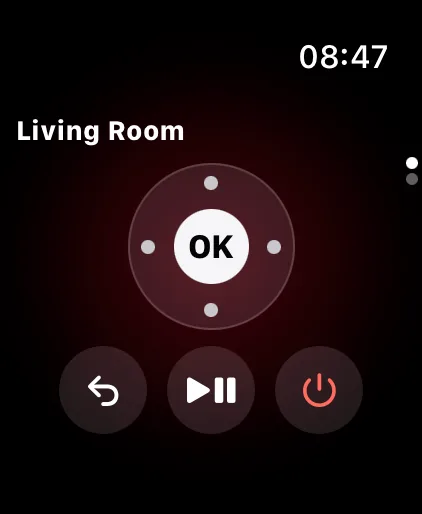
The watch screen is a smaller version of the iPhone remote:
- The ring around OK: tap the edges or swipe to move up, down, left and right.
- OK in the middle to select.
- Back, Play/Pause and Power below.
- The Digital Crown changes the TV volume: turn it up or down, one step per click. Fast turns send several steps at once.
That's enough to get through most of an evening — pausing for a snack, skipping back, turning it down when someone's asleep — without hunting for the remote or unlocking your phone.
Start a sleep timer from your wrist
Swipe to the second page of Vymote on the watch to find the sleep timer.
- Pick a time, from 15 minutes to 1.5 hours.
- Your iPhone starts the timer. Over the last minutes it turns the sound down gently to 30%, then turns the TV off.
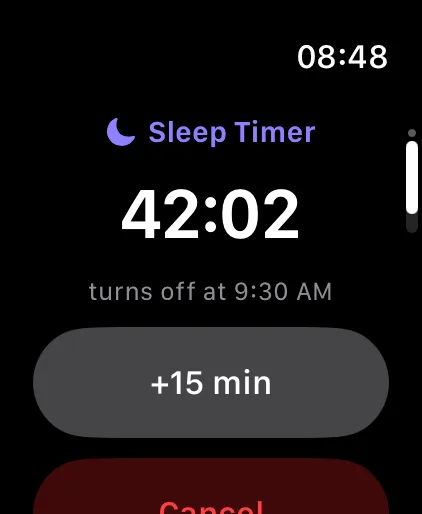
- While it runs, the watch shows when the TV will turn off, with +15 min and Cancel.
Vymote on the iPhone runs the timer, so keep Vymote open on the iPhone (it shows a dimmed night screen). More about how the fade works in TV sleep timer.
Put it on your watch face
Vymote has complications for the watch face: a circle that shows the sleep timer countdown as a ring (or a remote icon when no timer is running), plus corner, rectangular and inline styles. Tap one to open the remote.
- Touch and hold your watch face, then tap Edit.
- Swipe to the complications screen and tap a slot.
- Choose Vymote.
With Vymote
The Apple Watch remote is part of Vymote Pro. It comes with:
- The sleep timer on iPhone and watch, with a gentle fade; your first one is free.
- Typing with the iPhone keyboard and dictation (guide).
- TV apps and HDMI inputs in one tap.
- Photos and videos on the TV over Wi‑Fi (guide).
- Widgets, Control Center (iOS 18 and later) and Siri.
- The iPhone volume buttons for TV volume, and every TV in your home.
The basic remote on the iPhone — power off, volume, arrows, OK, Back and Home for one TV — is free forever, with no ads.
If the watch remote doesn't respond
- Check the iPhone. Open Vymote on the iPhone and make sure the remote works there. If it doesn't, the watch can't work either — see Why your remote app won't connect.
- Keep the iPhone close. The watch sends presses through the iPhone over Bluetooth or Wi‑Fi. If the phone is in another room, commands may be slow or fail.
- Same Wi‑Fi. The iPhone must be on the same network as the TV.
- Turn the TV on. A TV that's fully off doesn't listen on Wi‑Fi. Some TVs can be woken over the network once a setting is turned on; see How to turn on a TV without the remote.
- Restart Vymote on both devices if nothing helps.
Brand help: Samsung, LG, Roku, Google TV / Android TV.
FAQ
Can Apple Watch control a TV without the iPhone?
Not with Vymote. The watch sends commands through Vymote on your iPhone, so the iPhone must be nearby and on the same Wi‑Fi as the TV.
Does it work with a cellular Apple Watch away from home?
No. The TV only listens on your home network, so the iPhone must be at home on the same Wi‑Fi.
Can I change the volume with the Digital Crown?
Yes. Turn the Digital Crown to change the TV volume, one step per click.
Which TVs work with the watch remote?
The same ones as Vymote on the iPhone: Samsung smart TVs (2016 and newer), LG webOS TVs, Roku TVs and players, and Google TV / Android TV.
Can I switch TV apps from the watch?
The watch focuses on the essentials: arrows, OK, Back, Play/Pause, power, volume and the sleep timer. Open TV apps and inputs from the iPhone.